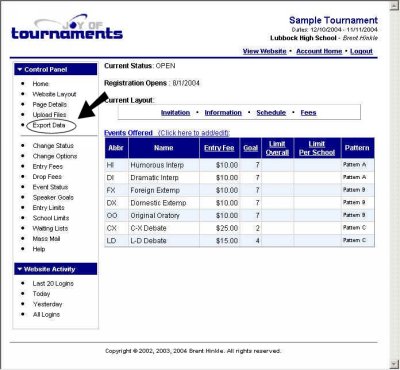
As a tournament administrator, you will have a login that allows you special access to the website. As entries are made, you are able to view all of the website activity for the tournament. When you get ready to transfer the data from the website to the PC version of the software, you will select the option labeled Export Data which is available from the 'Administration' link on the website.
An option labeled ' Export Entries (Joy of Tournaments Import Format)' should appear near the top of the Export Data page. Selecting this option will begin the export process. During the export, a series of files will be created. As each file is being created, the browser window will be updated. When the process completes, you will see a message indicating that the export is complete. Generally this process will take only a matter of seconds, but occasionally it may take a little longer to process all of the entries. The screen will appear similar to the following when the export has been completed.
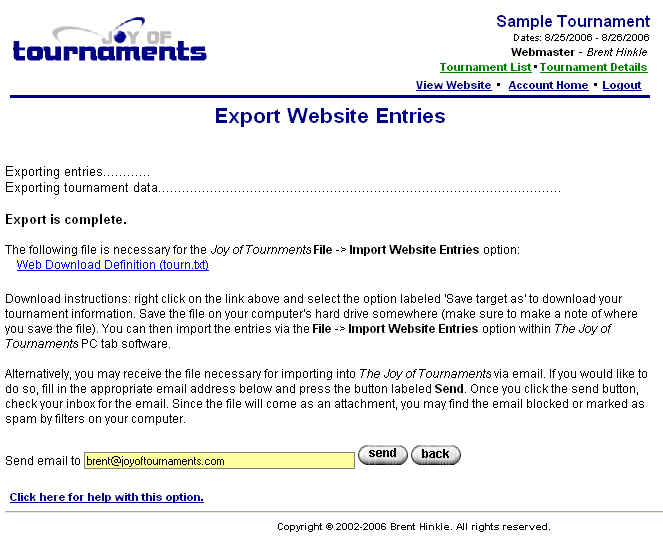
When the option to send email appears, you will know that the export has completed successfully.
You have two options for retrieving the necessary data for the next step. The simplest method is generally to right click on the near the middle of the page labeled Web Download Definition. Select the option labeled 'Save Target As' from the menu that appears and save the file as 'tourn.txt' on your computer's hard drive (make a note of where you save it).
The other option is to send the entries from the website to an email account of your choosing. The email account associated with your login will be displayed as a default. If you want to send the entries to a different account, you may enter that account in the space provided.
Click the send button to have the website email the information; it will be sent to your email account immediately although it may take a few minutes for the entries to reach your email account. The file will be sent as an email attachment, so it may be blocked or marked as spam by email filters. When you receive the email from the website, you are ready for the next step.
NOTE: it is only necessary for ONE of the methods above to work for you. That is, if you can right-click and download the file that way, you do not need to receive the email message. If you can receive the email message, then you don't have to be able to right click. One of the two options should work for you, but often, one or the other will be blocked by various policies on a school computer.
Next step: Open email message with entries