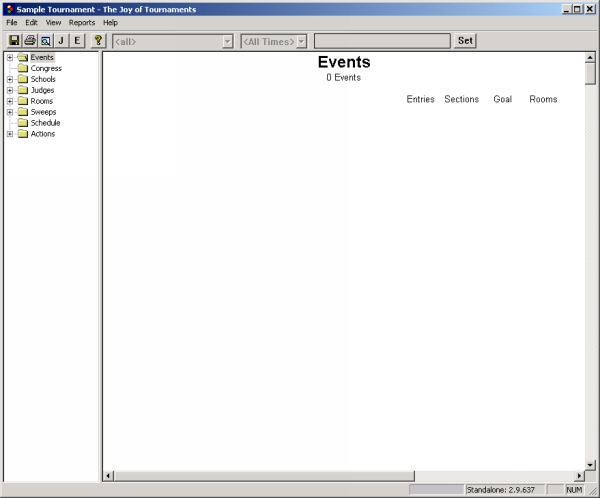
An empty tournament has no entries, no schools, no judges or antyhing in it previously. The initial screen will appear similar to the following.
From the File menu, select the option labeled Import Website Entries. The following dialog will appear.
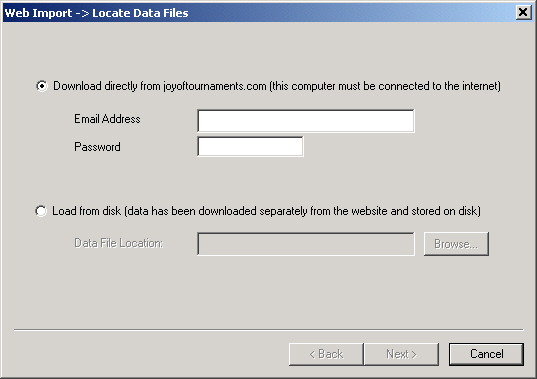
You will need to select the appropriate option on this dialog to locate the entries (either download direct, or load from disk). Once you select the appropriate option, you will be taken to the second step of the import process: mapping events.
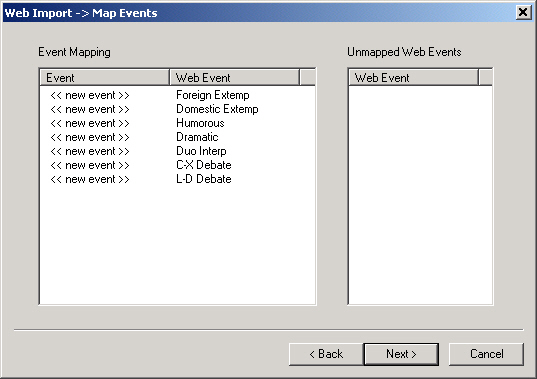
This dialog has two lists. On the left is a list labeled Event Mapping. The event mapping has two columns. The left column is labeled 'Event' and the right column is labeled 'Web Event'. Since you are beginning with an empty tournament, all of the events will be 'mapped' to a New event. This means that each event on the website should create a new event on your PC.
The list on the right is labeled Unmapped Events. This list should be empty if you are starting from an empty tournament.
Press the button labeled Next. You should see the 'Map Schools' dialog appear similar to the following:
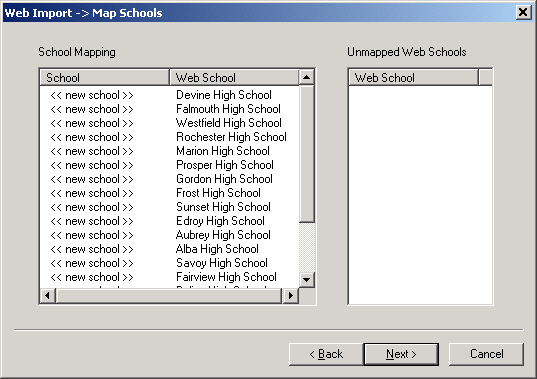
This dialog is very similar to the previous dialog. Two lists are displayed. The list on the left is labeled School Mapping. The left column of this list is labeled 'School' and the right column is labeled 'Web School'. Since you are beginning with an empty tournament, all of the schools will be 'mapped' to a new school. This means that each school on the website should create a new school on your PC.
The list on the right is labeled Unmapped Schools. This list should be empty if you are starting from an empty tournament.
Press the button labeled Next. This will bring up the final step of the import process.
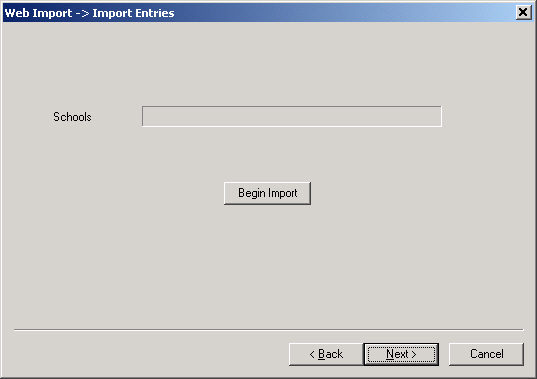
When you press the button labeled Begin Import, the process of reading the information stored in the files received from the website will begin. The progress bar on this dialog will indicate how far along you are in the process. As each school is imported, the school name will appear beneath the progress bar.
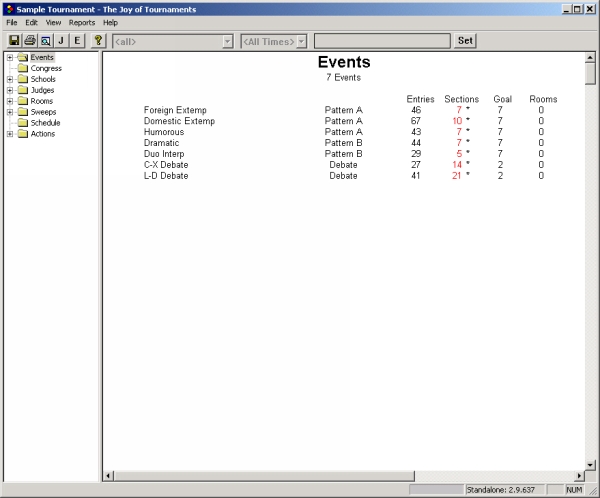
When this process completes, you may press the button labeled Finish that will appear. All of the schools, entries, and judges that were recorded on the website will then be available on your PC. For example, if you will compare the following screenshot to the first one on this page, you will see that several events appear and each of them now has several entries.